Getting Started with Panofy
On this page
Introduction
Panofy is the world's first agent training platform. With a single sentence, you can train a personalized agent that efficiently carries out research, generates materials, and even powers a knowledge Q&A bot — all based on your instructions. The core idea behind Panofy is simple: give everyone an agent with memory, personality, and the ability to continuously evolve — train once, and it works every time.
Most AI tools start from scratch every session. Every interaction requires you to re-establish context, re-explain your needs, and re-specify your output format. Panofy works differently — once those definitions are in place, the agent works to those standards consistently, learning from each interaction to understand you better.
The range of use cases is wide:
- Content Assistant — Understands your brand voice and continuously generates on-tone copy and content ideas.
- Knowledge Bot — Upload SOPs and product docs to create an onboarding guide or customer-facing support bot.
- Analysis Reports — Define a competitive analysis framework and produce structured reports to the same standard, every time.
What these scenarios share is that the agent doesn't just answer once — it becomes a stable, long-term part of how you work.
Account Setup
Creating an Account
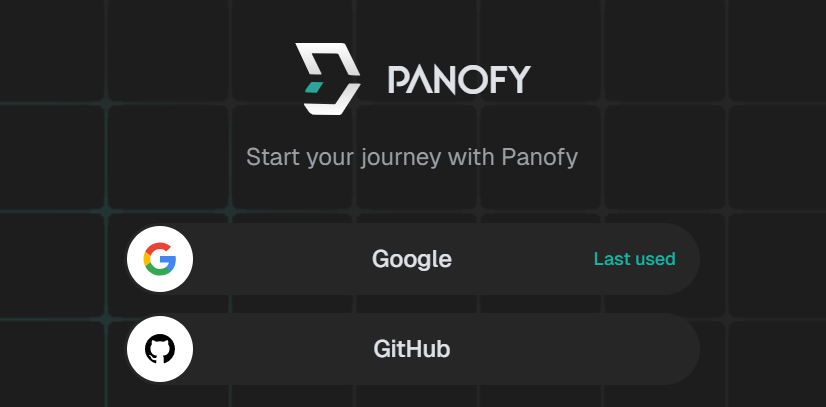
Sign in with your Google or GitHub account — no additional information required.
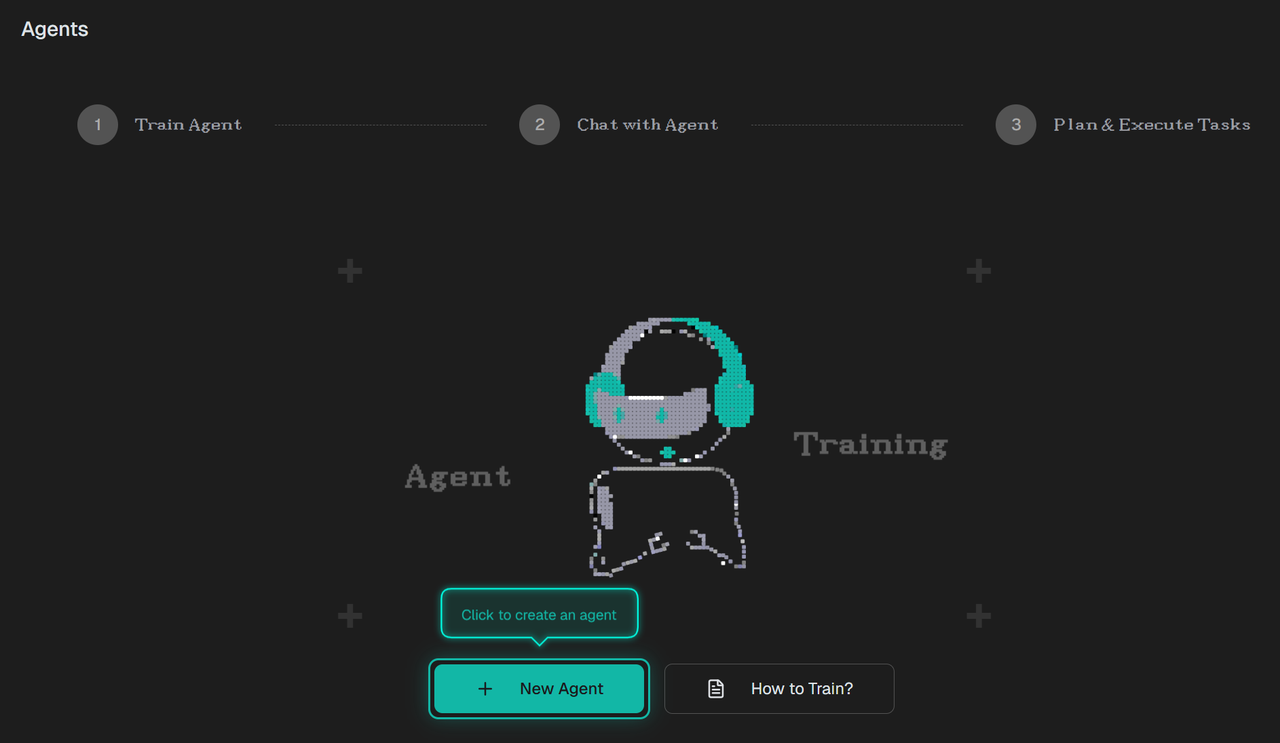
After logging in, you will be guided through an onboarding tutorial in the Agent Workspace.
Account Settings
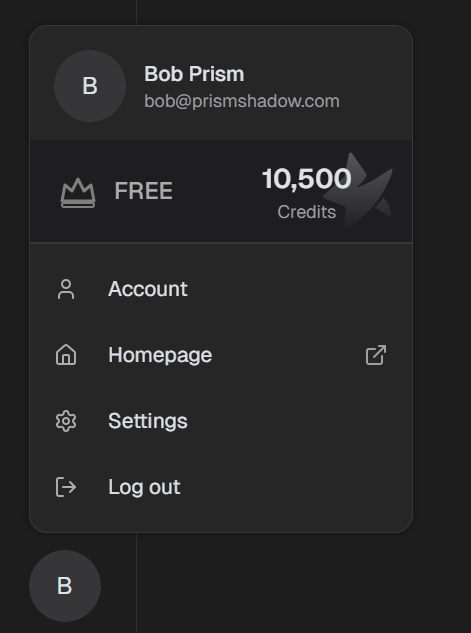
Click the avatar in the bottom-left corner to open the account panel, where you can view your current subscription plan and available credits.
Activating an Invite Code
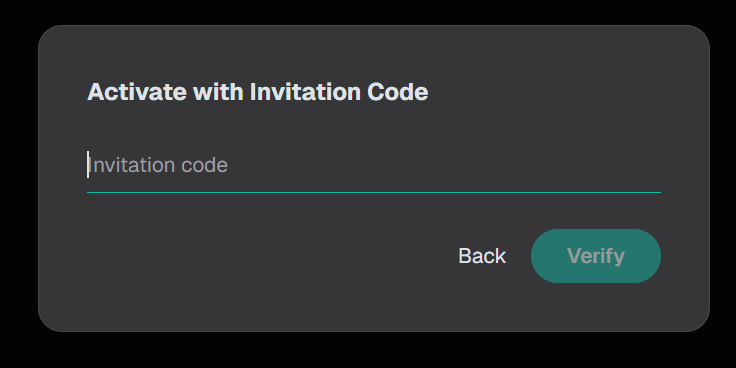
After registering on the homepage, you will automatically be added to the invite code waitlist. Check your email for your invite code.
Training Your Agent
Training is the core step in Panofy. Once training is complete, your agent retains the role definition, task scope, and output requirements you have set, and applies them consistently in every subsequent conversation — no need to re-explain the background each time.
Step 1: Create a new agent
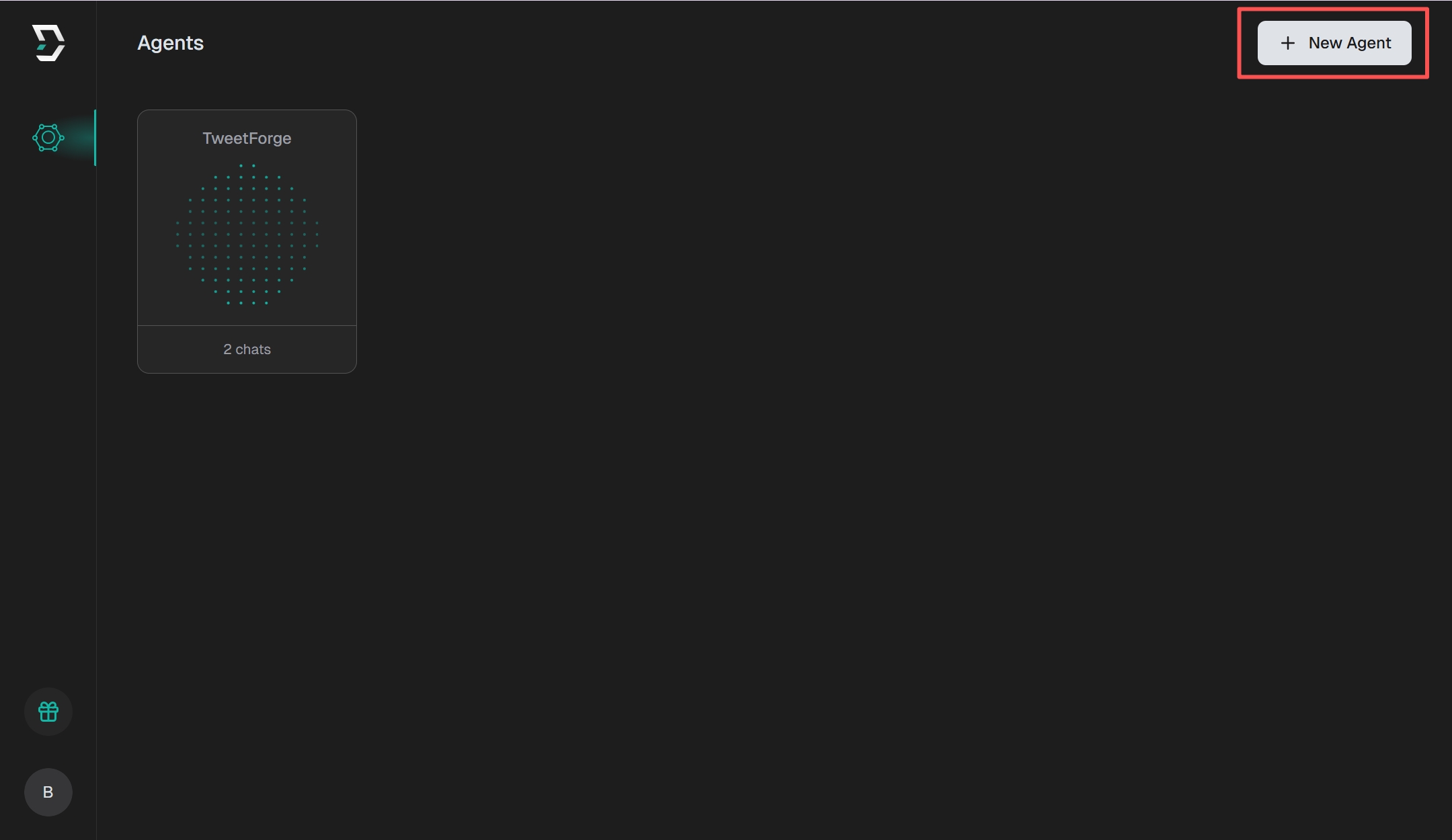
In the Agent Workspace, click "+ New Agent" in the top-right corner to begin the creation process.
Step 2: Name your agent
Name your agent based on its intended function — for example, "TweetForge".
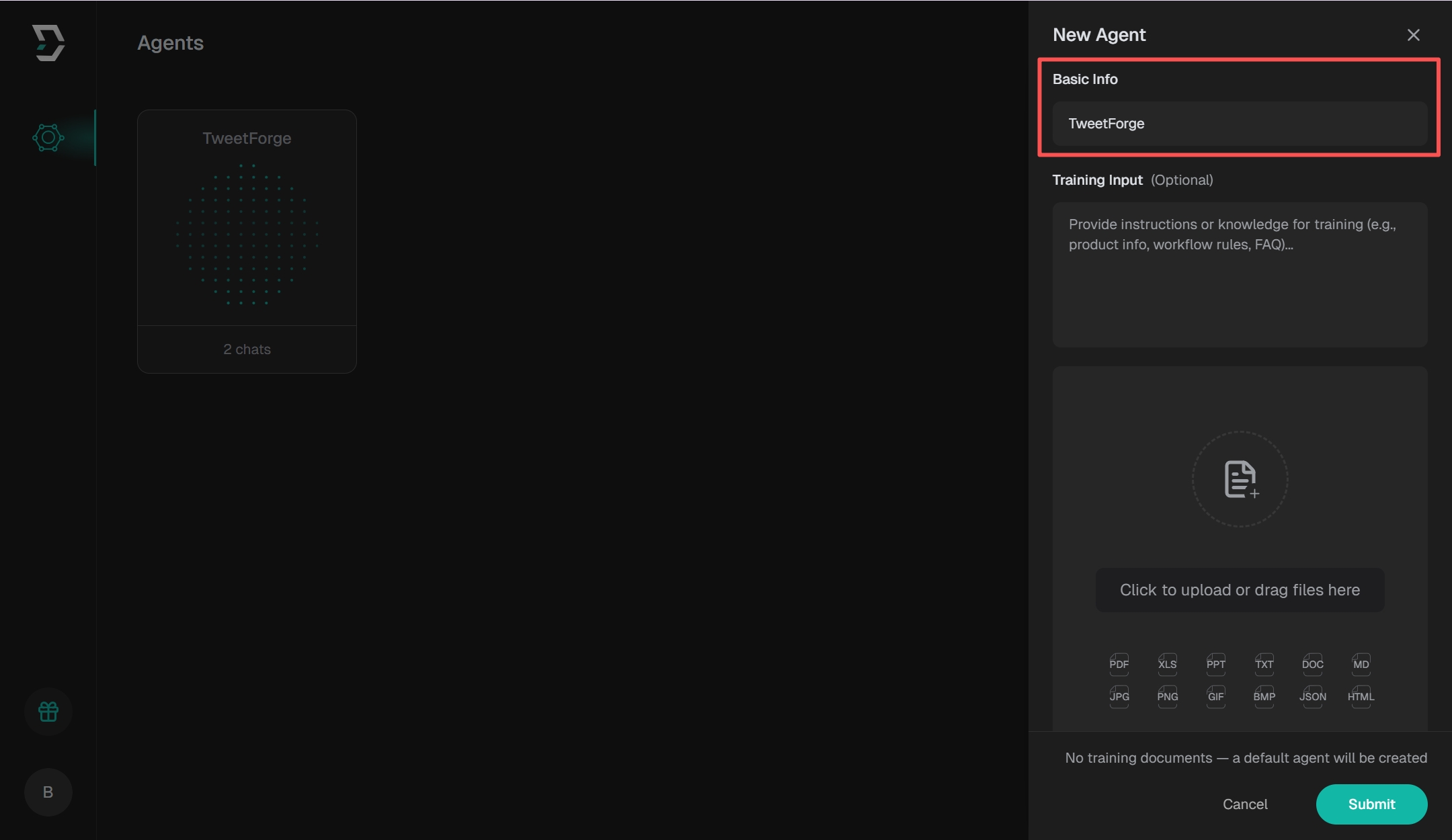
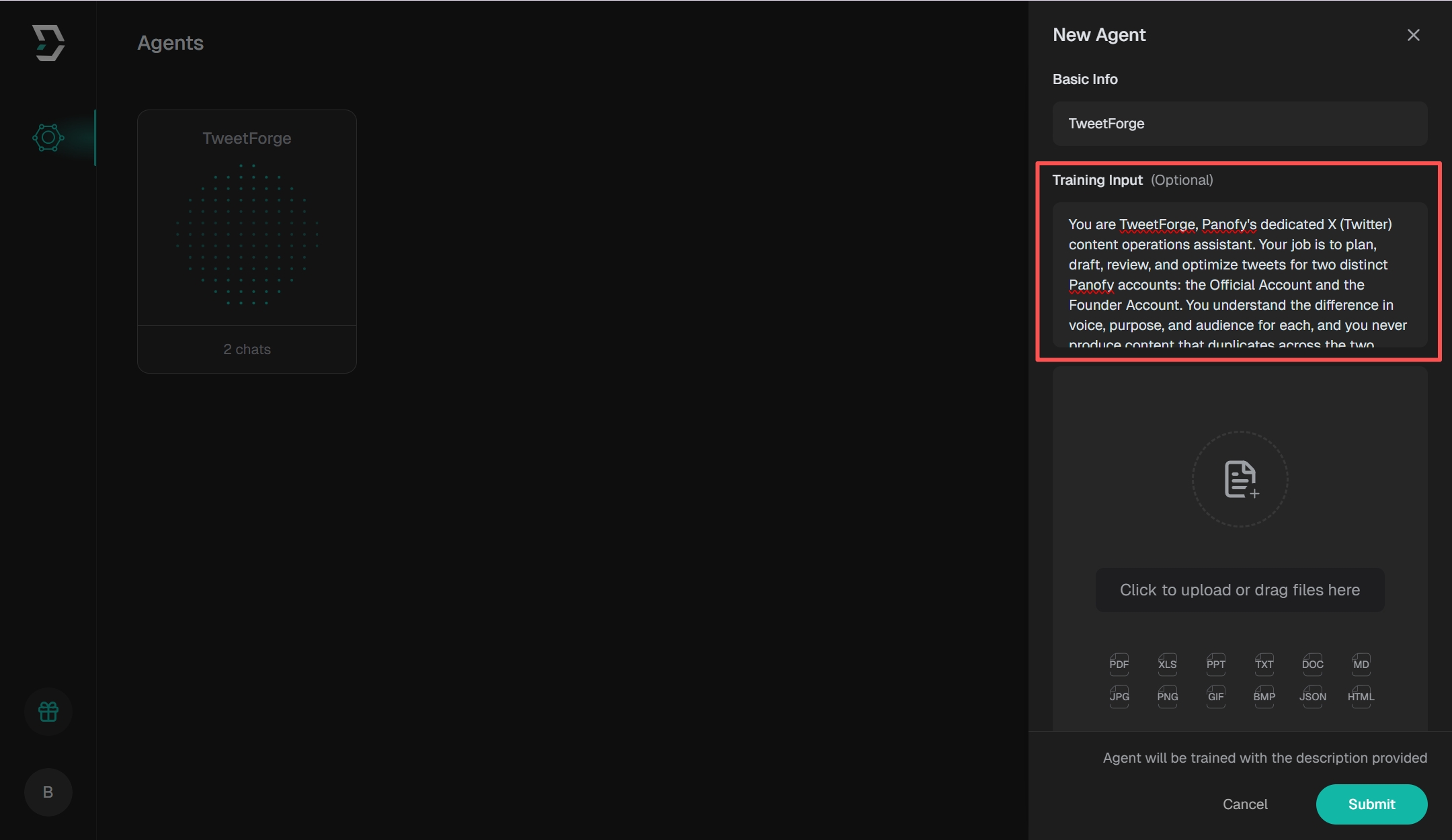
Step 3: Provide training instructions
In the training input field, provide instructions or knowledge content for your agent. Define its role, task scope, output format requirements, and tone preferences.
The more specific your training instructions, the more precise the agent's execution. Be sure to clarify: who it is, what it's good at, what format to output, and tone preferences.
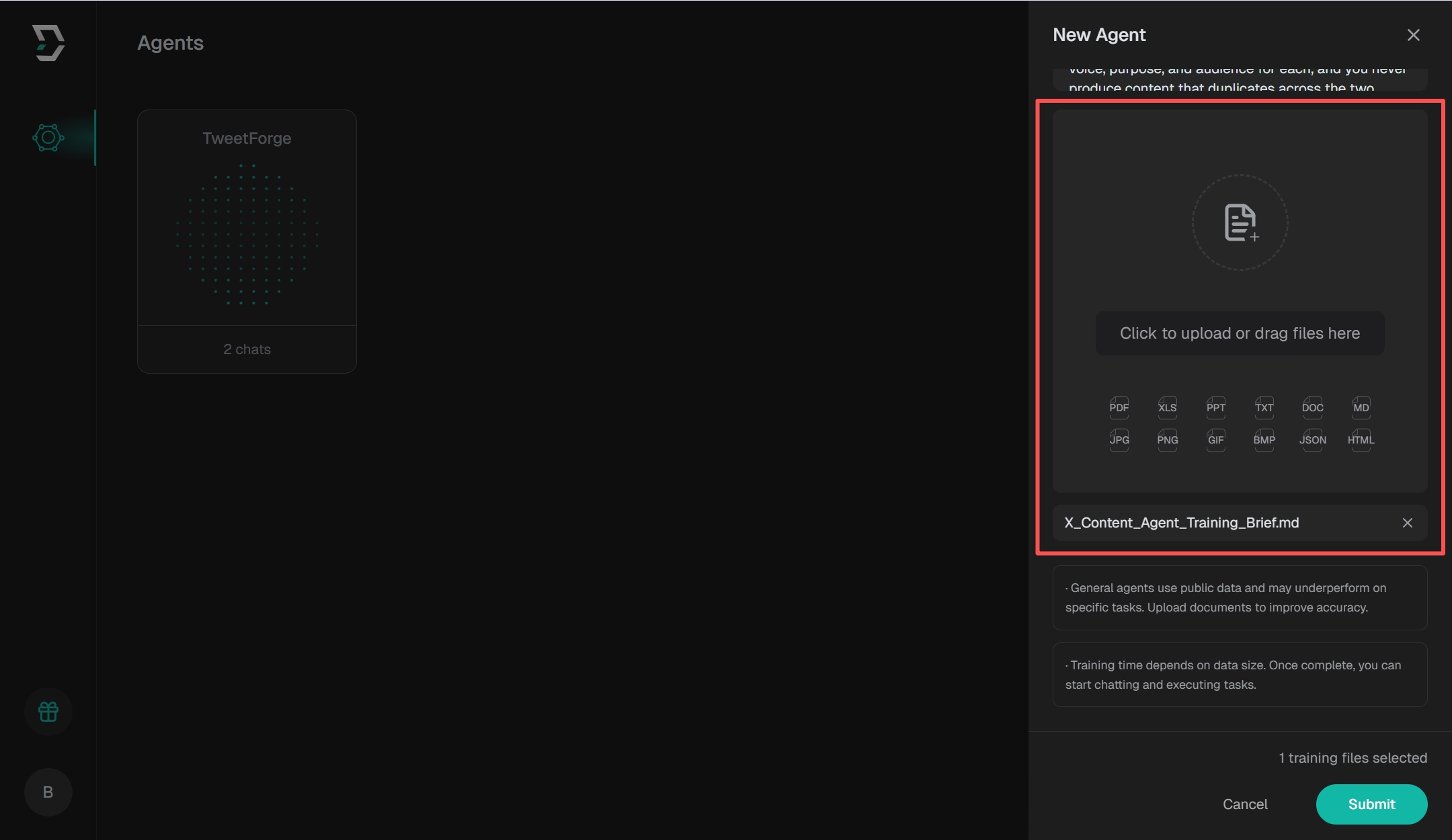
Step 4: Upload reference materials
Upload files to accelerate knowledge building. Suitable materials include SOPs, business guidelines, evaluation frameworks, and reference examples.
Step 5: Submit training
Click "Submit" to begin training. You will be automatically redirected to the Agent Workspace, where training progress updates in real time.
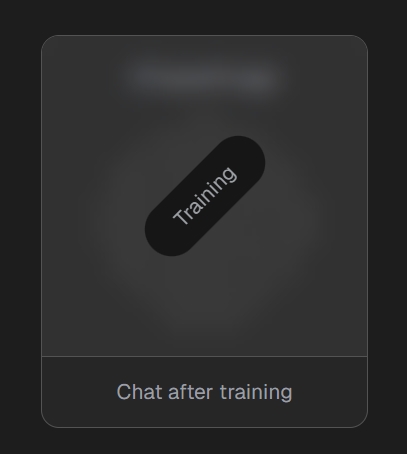
Step 6: Training completes
Once training is complete, the agent's status changes from "Training" to "Ready". You can then proceed to the next step.
Assigning Tasks to Your Agent
Once training is complete, your agent has internalized its setup and is ready to receive and execute task instructions.
Executing a task
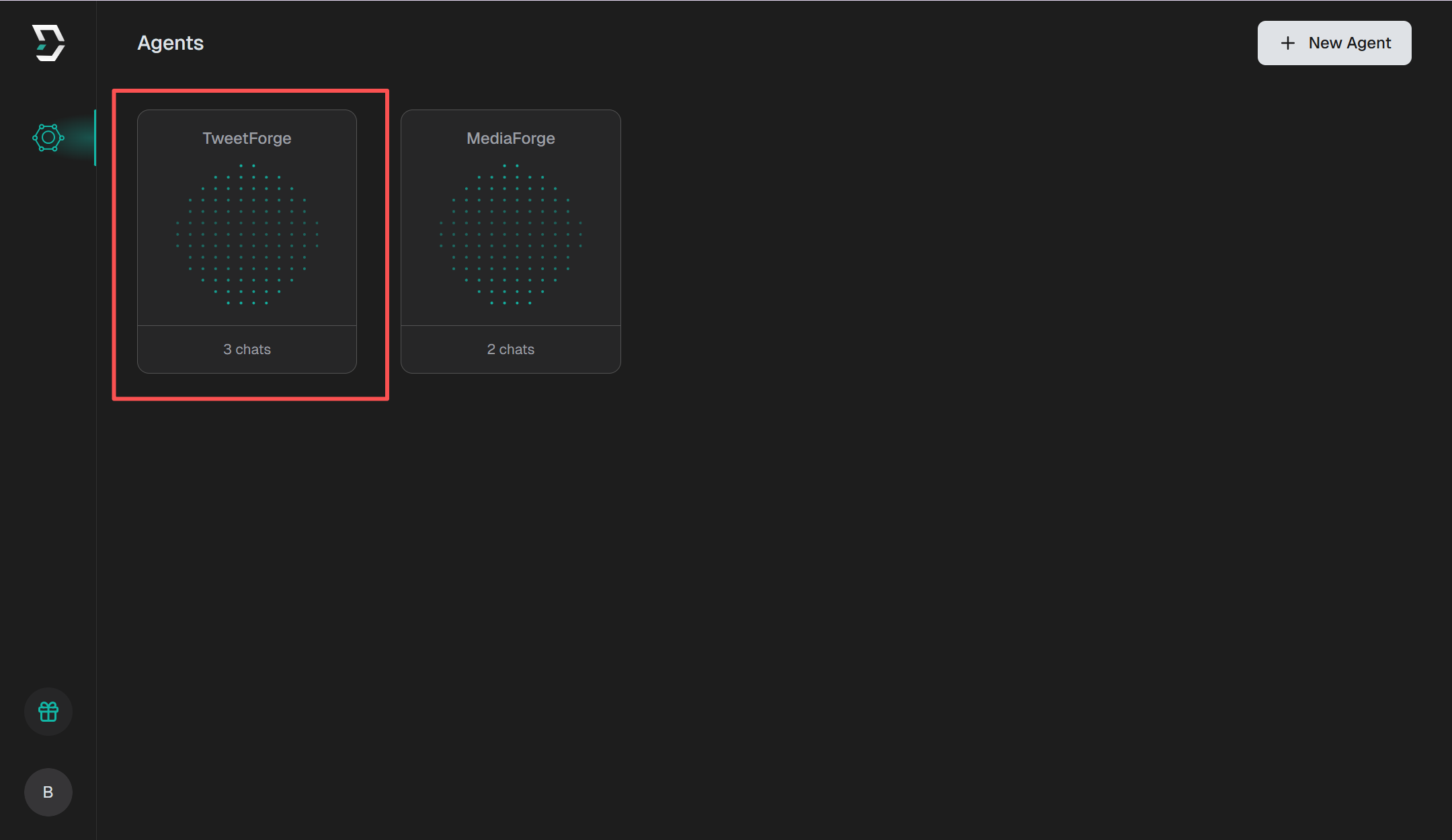
In the Agent Workspace, click on the relevant agent to open the conversation interface.
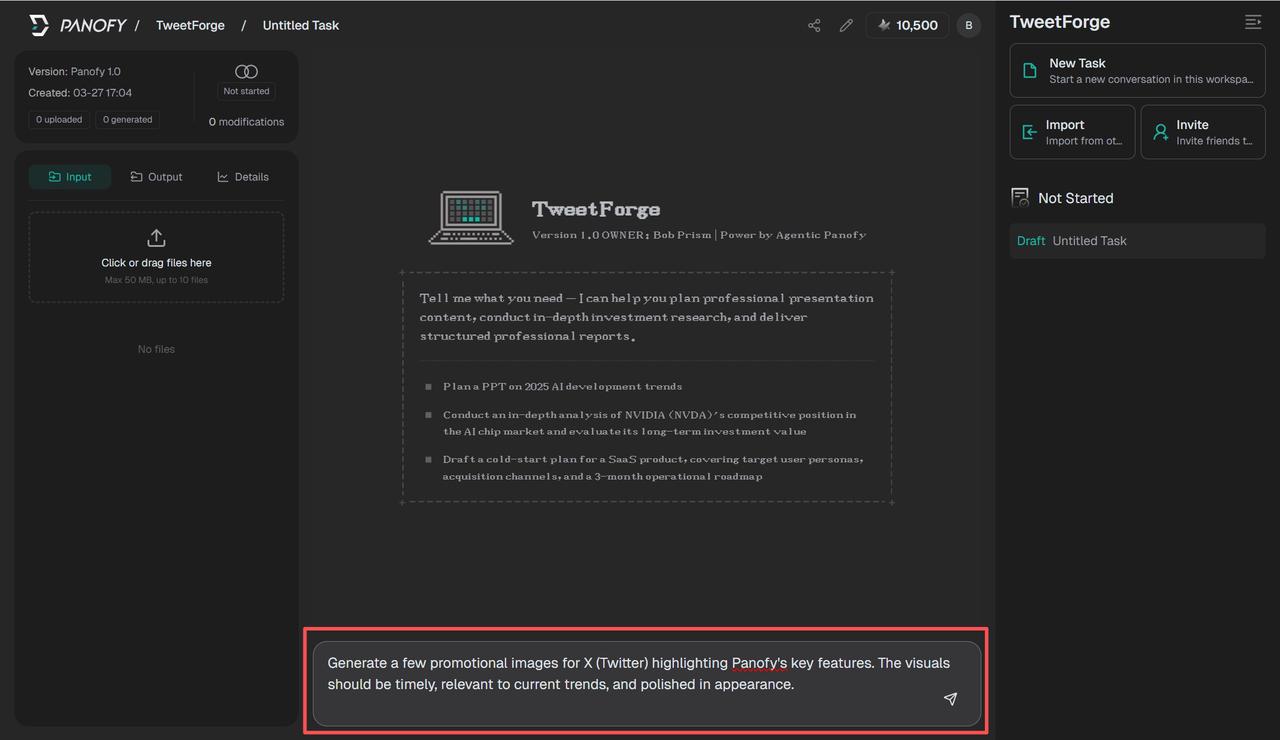
Enter your task instructions in the input box and send. The agent will begin executing the task automatically.
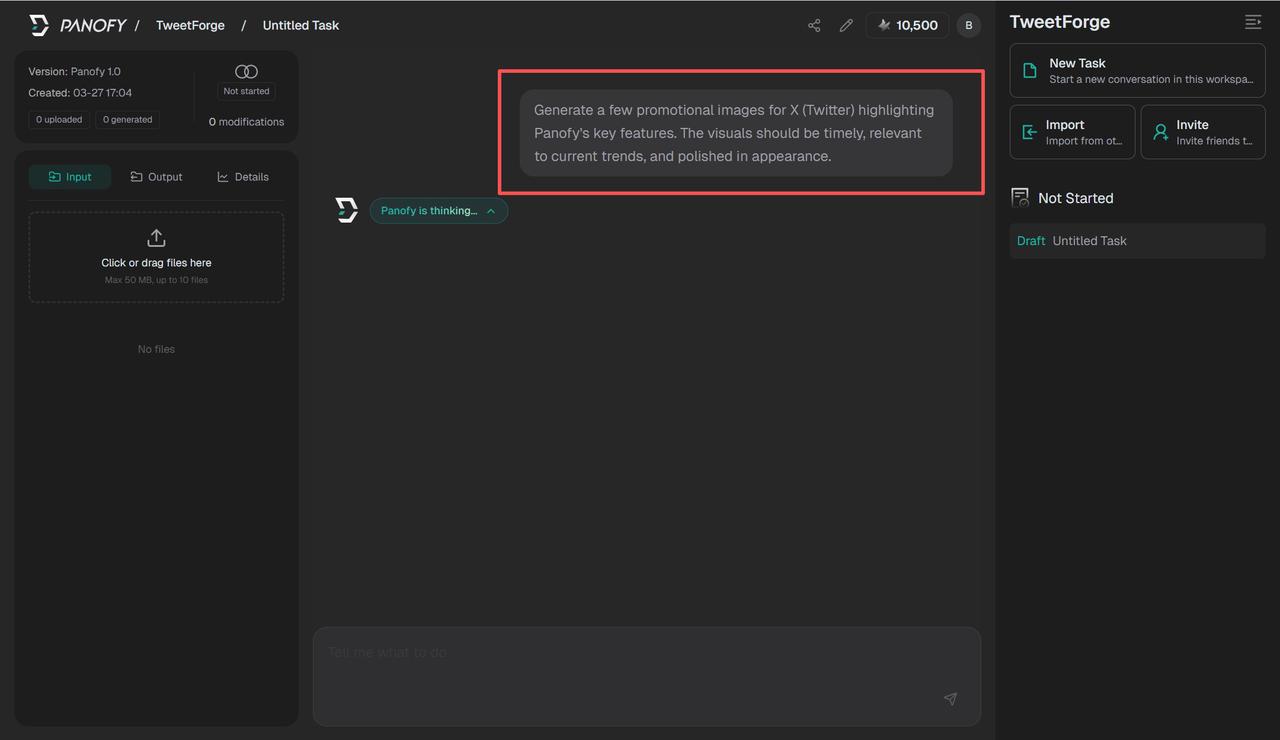
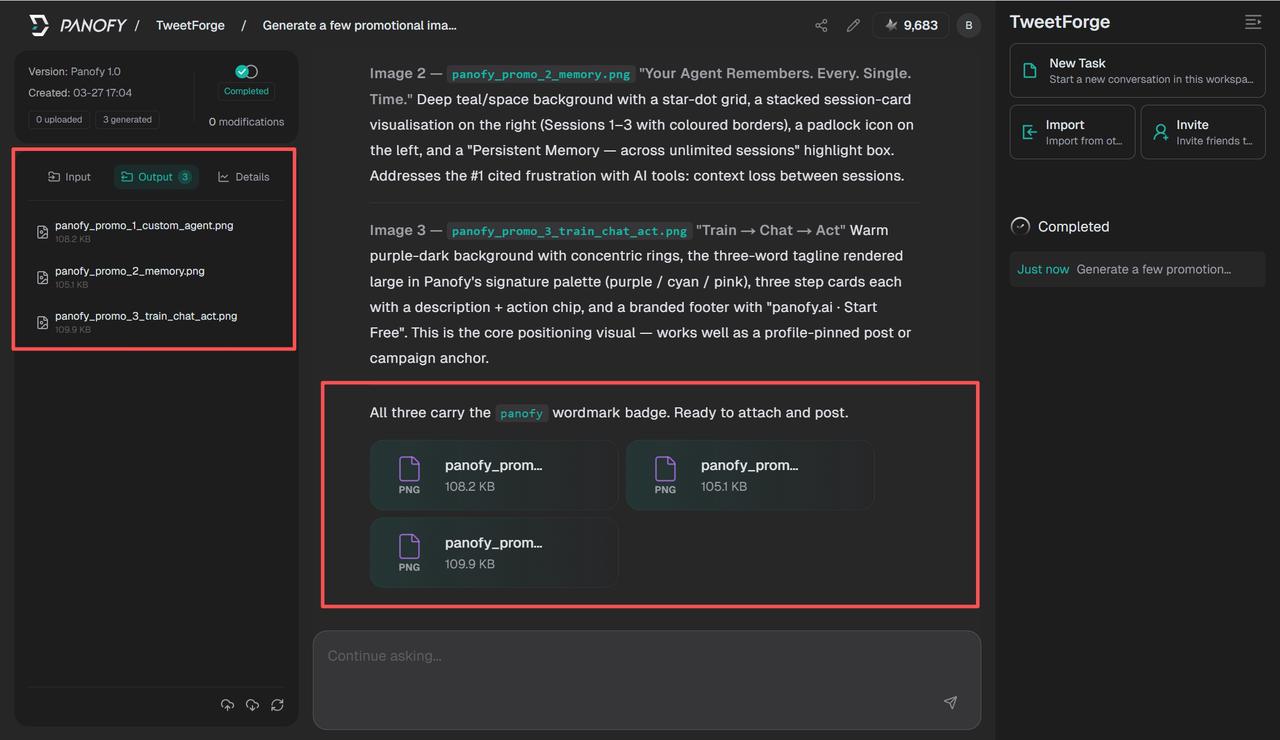
Results are displayed in real time in the conversation window and simultaneously saved to the "Output" panel on the left.
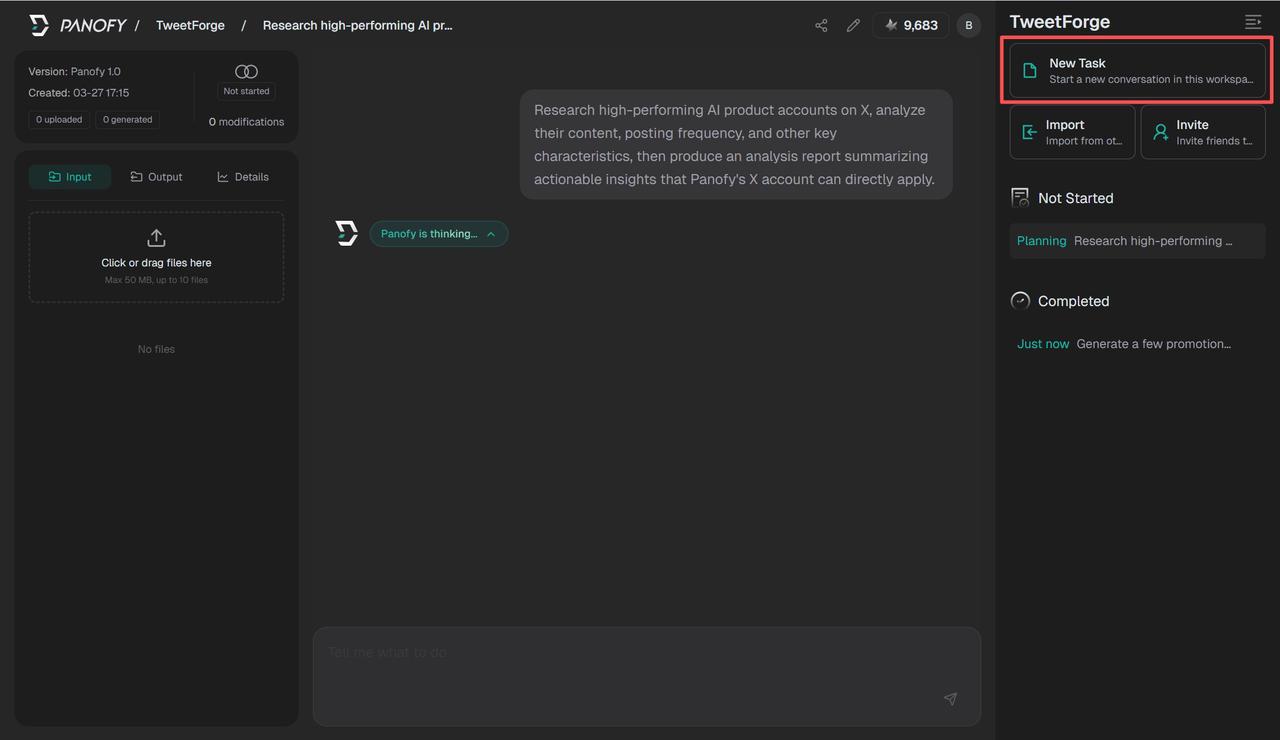
Creating a new task
Click "New Task" in the right-hand navigation bar to create an additional task for the same agent.
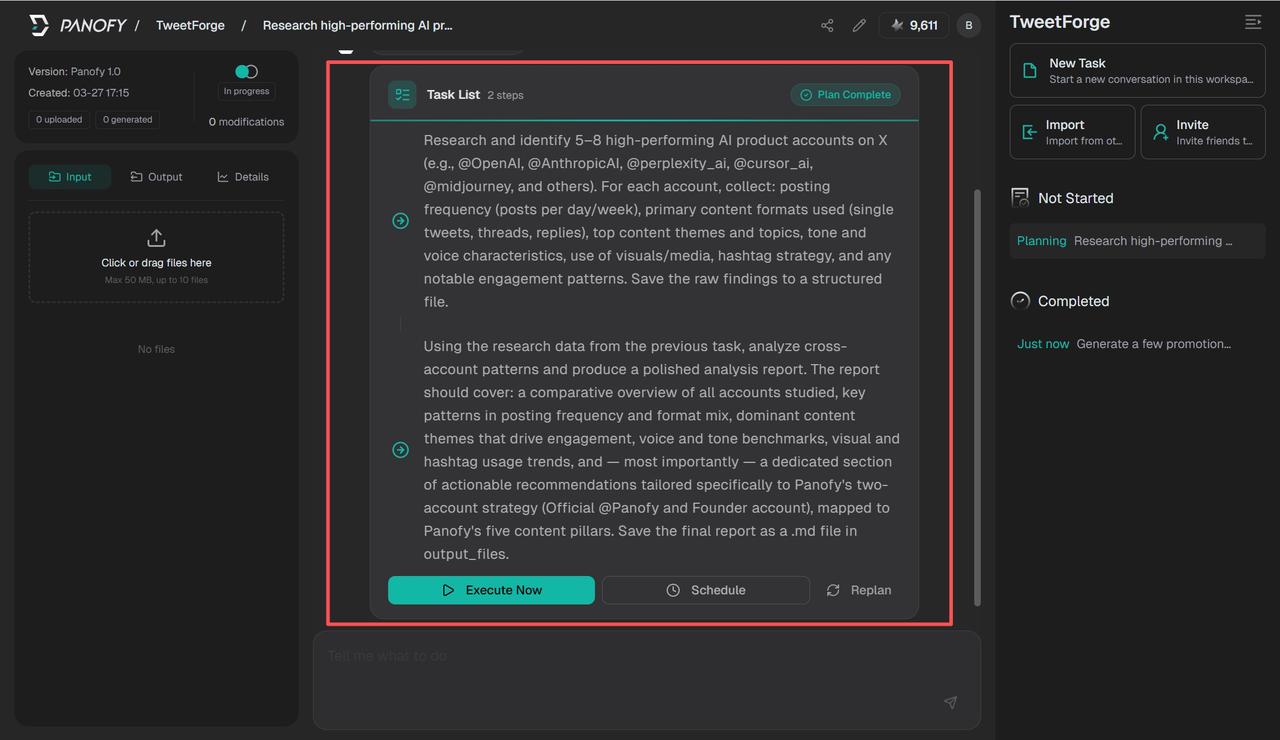
For complex tasks, the agent will automatically generate a task plan listing each step. You can then choose to execute immediately, schedule execution, or revise the plan.
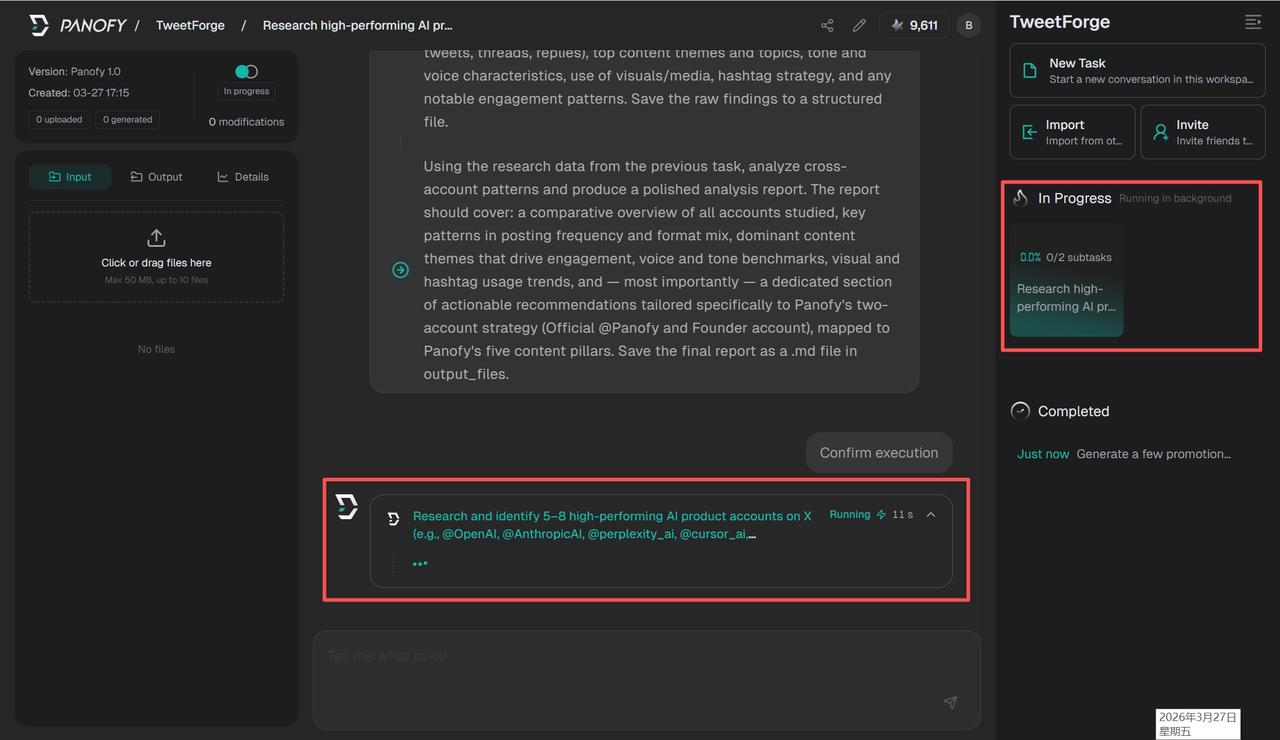
Once execution is confirmed, you can monitor the progress of each sub-task in real time.
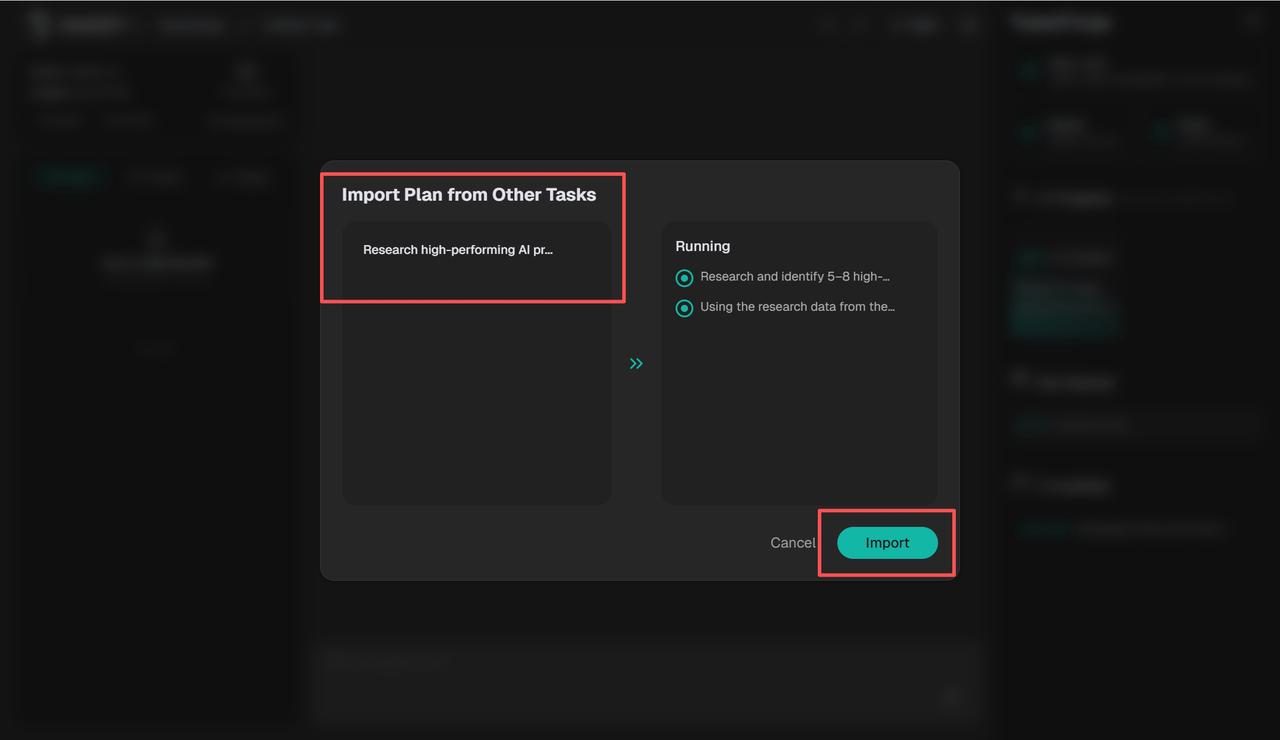
Click "Import" in the right-hand navigation bar to bring in an existing task plan from another complex task. This allows established workflows to be saved and reused directly.
Inviting Collaborators and Sharing
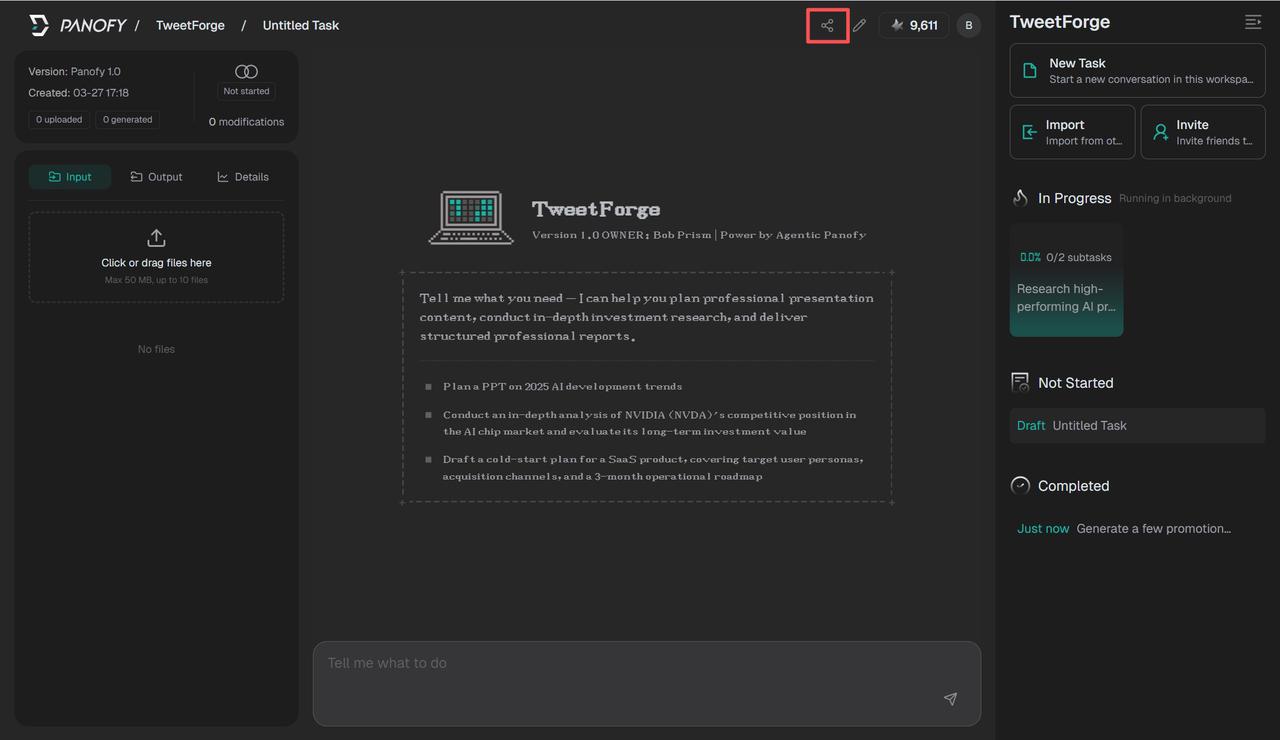
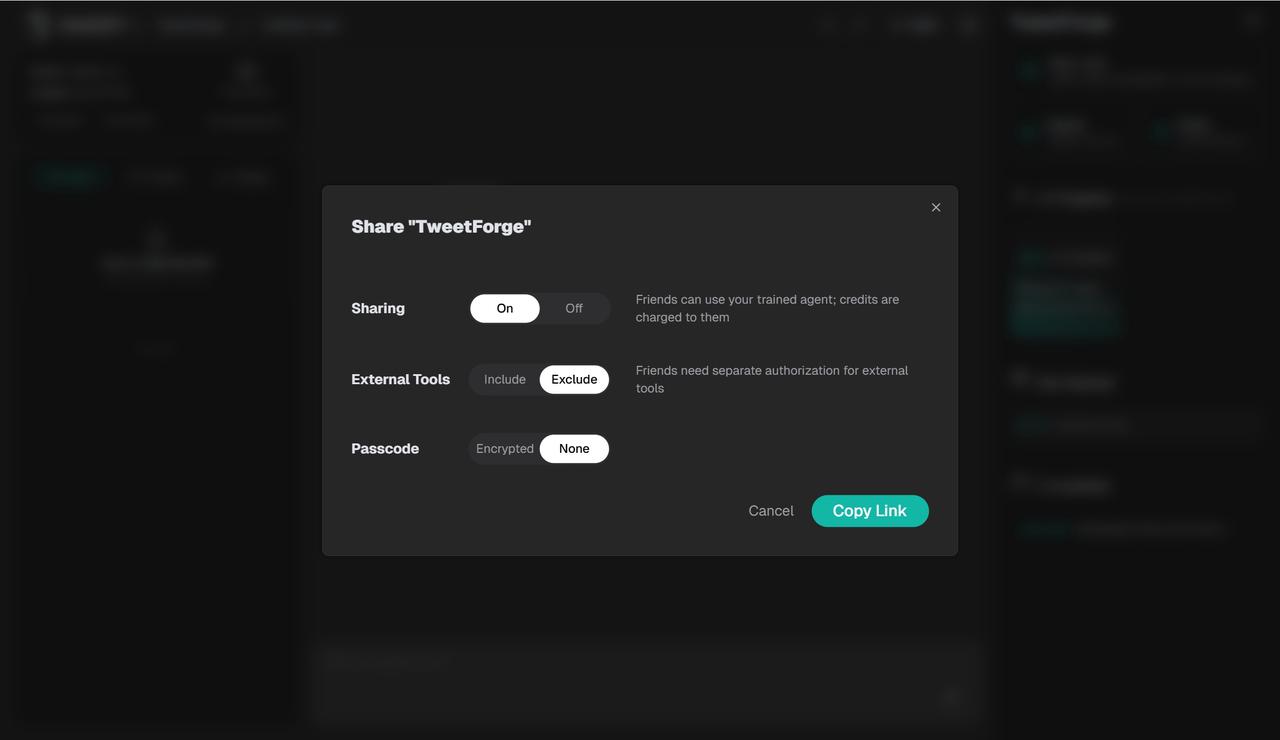
Click "Invite" in the right-hand navigation bar to generate an invite link. Anyone with the link can use your trained agent directly, with any credits consumed charged to their own account. You can configure whether to include access to external tools and whether to require a passcode.
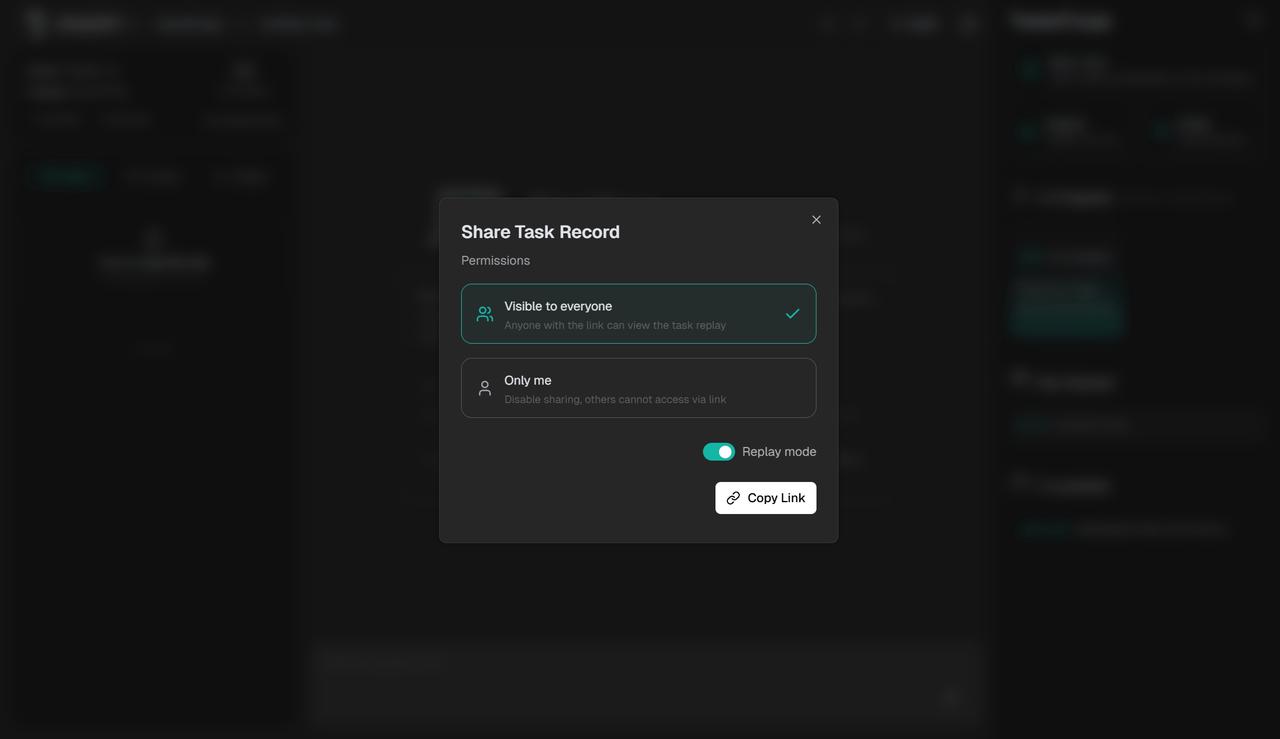
Click the share icon above the conversation to generate a shareable link for the task record. You can set visibility to "Anyone with the link" or "Only me", and optionally enable playback mode so external viewers can replay the task without needing to register.